Why sticky notes still work on a screen
Some people do not think in neat task lists. A long vertical list can hide what matters, make every item feel equally urgent, and turn planning into another thing to manage. A sticky-note board gives the day a shape. You can put the messy thing in the corner, keep the next thing near the middle, and move a reminder beside the note it belongs to.
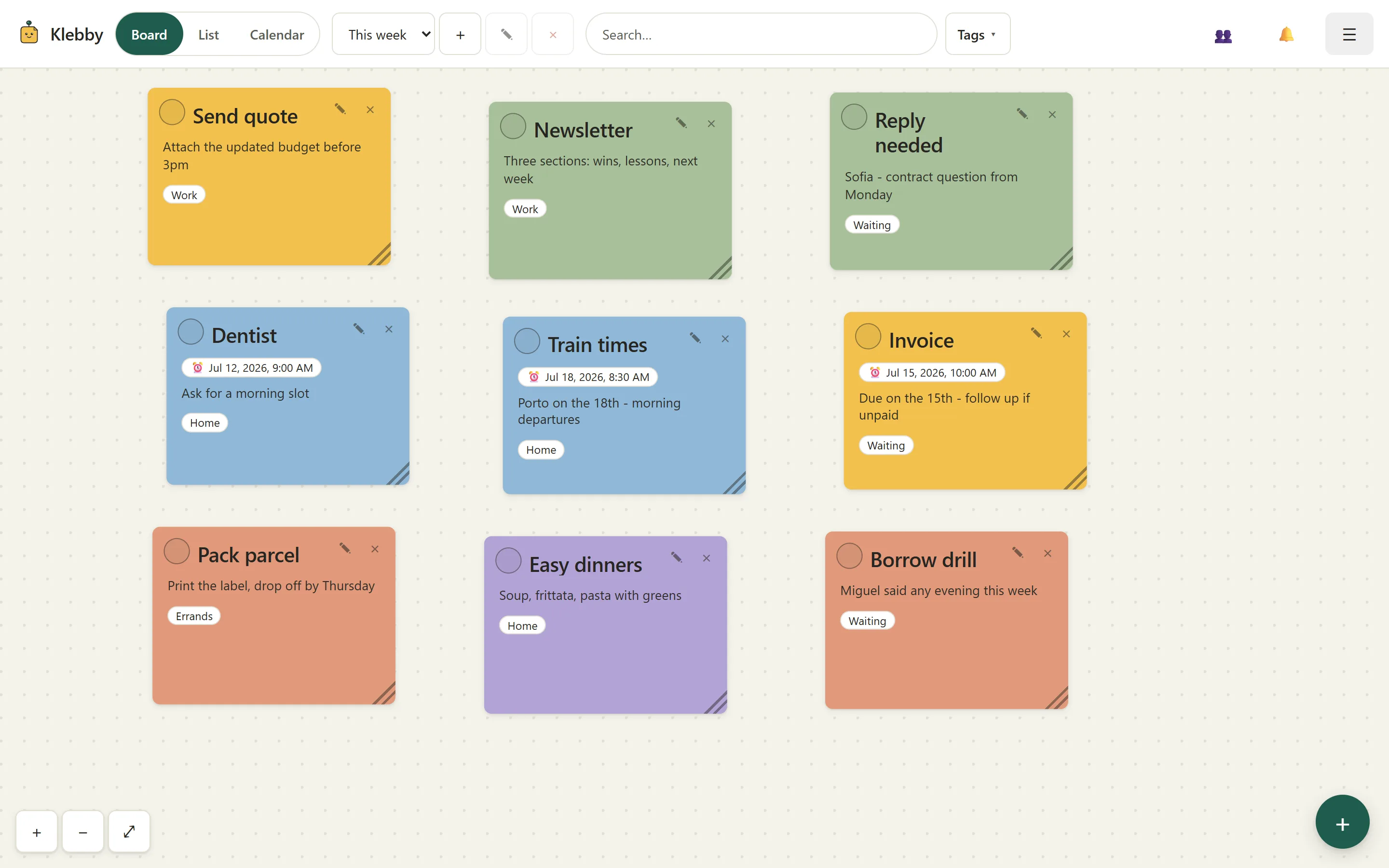
Klebby is built around that simple idea: a visual sticky-note board that stays lightweight. It is not a project-management suite, a team wiki, or a health app. It is a place to get thoughts out of your head, move them into a visible layout, tag them, share the parts that involve someone else, and come back later without losing the arrangement.
That can be useful for people searching for an ADHD sticky note app, but the promise here is deliberately modest. Klebby does not diagnose, coach, or make medical claims. It is a visual organization tool for busy, visual brains: notes on a board, tags for context, one-shot reminders for timely nudges, and simple sharing when another person needs to see the same slice.
You can open Klebby and start from the board, explore the visual sticky-note board features, or check the current Free and Pro packaging on the pricing page.
The board is freeform, not a disguised list
The core view is a freeform board. Notes can sit wherever you put them. A note for a call can live near the top. A shopping thought can sit off to the side. A half-formed idea can stay parked until it becomes clearer. The point is not to force everything into a priority field; the point is to let placement carry some of the meaning.
That matters when the friction is not writing the note, but finding it again. A strict list asks you to remember the right order. A freeform board lets you use spatial memory: the thing near the top left, the cluster around a person, the note you moved closer because it became important.
Klebby also has a list view. If you want a denser scan, switch views and read the same notes in a more compact layout. The board and list are two ways to look at the same working set, not two separate places where notes disappear from each other.
Tags keep context without making folders heavy
Folders are useful when something belongs in one place. Real life is less tidy. A note can be about work and money. A task can involve home and someone you share with. Klebby uses tags so one note can carry context without being trapped in a folder tree.
The current filter is intentionally simple: pick one tag and Klebby shows notes carrying that tag. Clear the filter and the full view comes back. That single-tag filter is often enough for quick context switching. You can focus on errands, invoices, study, a client, or a household list without rebuilding the board.
Tags also make sharing more precise. Instead of sharing every note or creating a whole separate workspace, you share one tag. The person you invite sees notes under that tag and nothing else. If they only need read access, make them a viewer. If they should help update note content, make them an editor.
Sharing is built around real small-group use
Many visual note apps are personal first and collaborative later. Klebby makes sharing part of the everyday workflow. Share a tag with someone, keep roles clear, and continue using your own layout.
Shared notes support comments, so a note can hold the discussion that belongs to it. If a collaborator asks a question, the comment stays attached to the note instead of drifting into a chat thread. Realtime updates mean shared changes can appear without manual refresh, which helps when two people are looking at the same tagged set.
This is especially useful for small, practical collaboration: a household list, a client handoff, a student project, a creator checklist, or an ongoing human situation where one person should not have to copy the same note into three places. You can keep your private notes private while sharing only the tag that actually needs another pair of eyes.
One-shot reminders keep nudges close to the note
Klebby supports one-shot reminders on notes. Set a date and time, and the reminder belongs to the note itself. When it is due, Klebby can surface a notification in the app bell and, if email reminders are enabled, send an email.
That keeps the nudge connected to the context. A reminder that only says “tomorrow” can be useless if you have forgotten what tomorrow meant. A reminder attached to the actual note brings back the title, the body, the tags, and the place where you were organizing it.
The best use is specific and limited: renew a document, message someone after lunch, bring an item on a particular day, or check a note after a waiting period. It is not a full scheduling system. It is a way to put a time-sensitive note back in front of you once.
Offline access reduces the penalty for capturing quickly
Good capture tools need to tolerate imperfect conditions. You might be on a train, in a waiting room, or between tasks with a weak connection. Klebby keeps a local cache and queues note changes while offline, then syncs when the connection returns.
That does not mean offline mode is a backup strategy. It means the app is less brittle during normal use. If a thought lands at the wrong moment, you can still write it down, tag it, and move on.
Klebby also supports light and dark mode, so the board can match the environment you are actually using. That is small, but it matters for a tool you may open many times a day.
Privacy and control are part of the workflow
Klebby is made by an independent developer in Portugal, and the product is built with GDPR expectations in mind. The app includes data export, including JSON and CSV options, and account deletion controls.
That is not decorative policy text. Notes can contain personal errands, household context, client fragments, study plans, and private reminders. A sticky-note app should make it clear that your notes are yours, that sharing is intentional, and that leaving should not require begging support for a copy of your own data.
Tag sharing follows the same principle. A shared tag is explicit. Roles are explicit. Private notes outside that tag stay outside it.
A practical way to set up Klebby
Start with fewer tags than you think you need. A good first set might be “today”, “waiting”, “home”, “work”, and one person or project that regularly pulls your attention. Add more only when a note would be hard to find without the extra label.
Next, use the board spatially. Put active notes near the center, waiting notes to one side, and reference notes lower down. Do not spend too long perfecting the layout. The layout is there to reduce friction, not become a second task.
Then share only the tags that need another person. If someone only needs to follow along, use viewer access. If they should help update notes, use editor access. Keep comments on the relevant note so the context stays attached.
Finally, use one-shot reminders for concrete moments. A reminder should answer: “When do I need this exact note back in front of me?” If the answer is vague, tag placement may be better than a reminder.
What Klebby is not for
Klebby is not trying to replace a full task-management stack with dependencies, sprint planning, dashboards, file repositories, or long documents. It is also not a health product. If your workflow needs formal case management, clinical support, heavy reporting, or complex team administration, choose software built for that job.
Klebby is for the smaller but common problem: scattered thoughts, small commitments, shared bits of context, and the need to see them in a layout that makes sense to you. If a plain list feels too flat, but a large productivity system feels too heavy, a visual sticky-note board can be the middle ground.
That is the lane: simple notes, visible structure, tags, a single-tag filter, shared tags with roles and comments, realtime collaboration, one-shot reminders, offline access, light and dark mode, and export/delete controls when you need them.
FAQ
Is Klebby a health app?
No. Klebby is a visual organization app. It is for arranging notes, tags, reminders, and shared context; it is not health advice or a replacement for professional support.
Can I share only one group of notes?
Yes. Klebby shares tags, not your whole account. You can invite someone to one tag, choose viewer or editor access, and keep everything else private.
Does Klebby work without a connection?
Yes. The web app keeps a local cache and queues note edits while offline, then syncs them when the connection returns.
Can I export or delete my data?
Yes. Klebby includes GDPR export and account deletion controls, with JSON and CSV export available from the app.